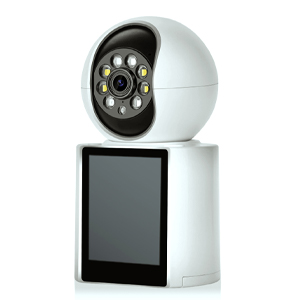
Have you ever run into trouble trying to connect a device that only supports 2.4 GHz Wi-Fi—like a security camera, smart plug, or baby monitor—to your dual-band home network? You’re not alone.
Many modern routers broadcast both 2.4 GHz and 5 GHz signals under the same network name (SSID) by default. While this makes connecting faster for phones and laptops, it can cause issues for older or simpler devices that only recognize the 2.4 GHz band.
The good news? The fix is simple. In this guide, we’ll walk you through how to split your Wi-Fi bands and get your camera connected in just a few minutes.
Most dual-band routers use a feature called "band steering" to automatically assign devices to the best frequency. Unfortunately, cameras and other IoT devices often can’t handle this “smart” switching—they look for a pure 2.4 GHz signal.
If your camera isn’t connecting, it’s likely because it can’t distinguish the 2.4GHz network from the 5GHz one. The solution is to create two separate Wi-Fi networks.
Grab a computer or smartphone and make sure it’s connected to your existing Wi-Fi.
Open a web browser (Chrome, Safari, etc.) and type your router’s IP address into the address bar. Common addresses include:
192.168.1.1
192.168.0.1
192.168.50.1
You can usually find this info on a sticker on the back or bottom of your router.
Log in with your admin username and password. If you never changed them, check the sticker for defaults.
Look for a section labeled Wireless, Wi-Fi Settings, or Dual-Band Management.
This might be under Advanced Settings, depending on your router brand (e.g., TP-Link, Netgear, ASUS).
Disable Smart Connect or Band Steering (if enabled).
Now, assign unique names (SSIDs) and passwords for each band. For example:
2.4 GHz Network:YourNetwork_2.4G
5 GHz Network:YourNetwork_5G
📌 Tip: Use a clear naming convention so you and your family can easily identify each network.
Click Save or Apply. Your router will likely restart—this may take a minute or two.
Once it reboots, you’ll see two separate Wi-Fi networks available.
Now, go through your camera’s setup process as usual. When prompted, select the new 2.4 GHz network (e.g., YourNetwork_2.4G) and enter the password you just set.
That’s it! Your camera should now connect without any issues.
Keep Both Networks Active: Your phones and tablets can still use the faster 5GHz network for streaming and gaming.
Security Check: While you’re in the router settings, make sure your encryption type is set to WPA2 or WPA3 for better security.
Placement Matters: 2.4 GHz signals travel farther through walls, so your camera should still get a strong connection even if it’s placed outdoors or in a basement.
If your camera still won’t connect, try:
Moving the camera closer to the router during setup.
Updating your router’s firmware.
Resetting the camera and trying again.
If all else fails, check the camera manufacturer’s website or support page for device-specific guidance.
Copyright © 2023 INSEETECH LIMITED. All Rights Reserved.